Brim August 2026 Release: Optimize Variables Methodically, Flags and Comments, and More

September 2, 2026
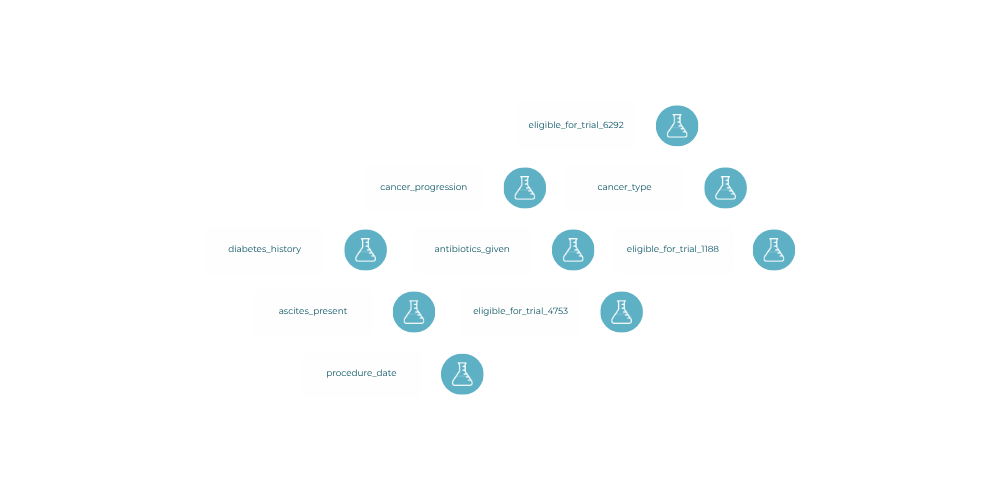
This month lets you prove how a change works before it reaches your data. The updated Optimizer turns every variable revision into a small experiment: propose it, test it on a sample of your training dataset, compare agreement before and after, and apply it only if the numbers hold up. The much-requested Flags and Comments bring triage and discussion onto the result itself, where the rest of your team can see them. We're also publishing our IRB Language Guide for teams writing Brim into a research protocol.
The Optimizer: Prove It Before You Apply It
Complex variables are difficult to improve by intuition alone. You rewrite an instruction, regenerate, and hope the numbers move in the right direction. The updated Optimizer makes that loop methodical.
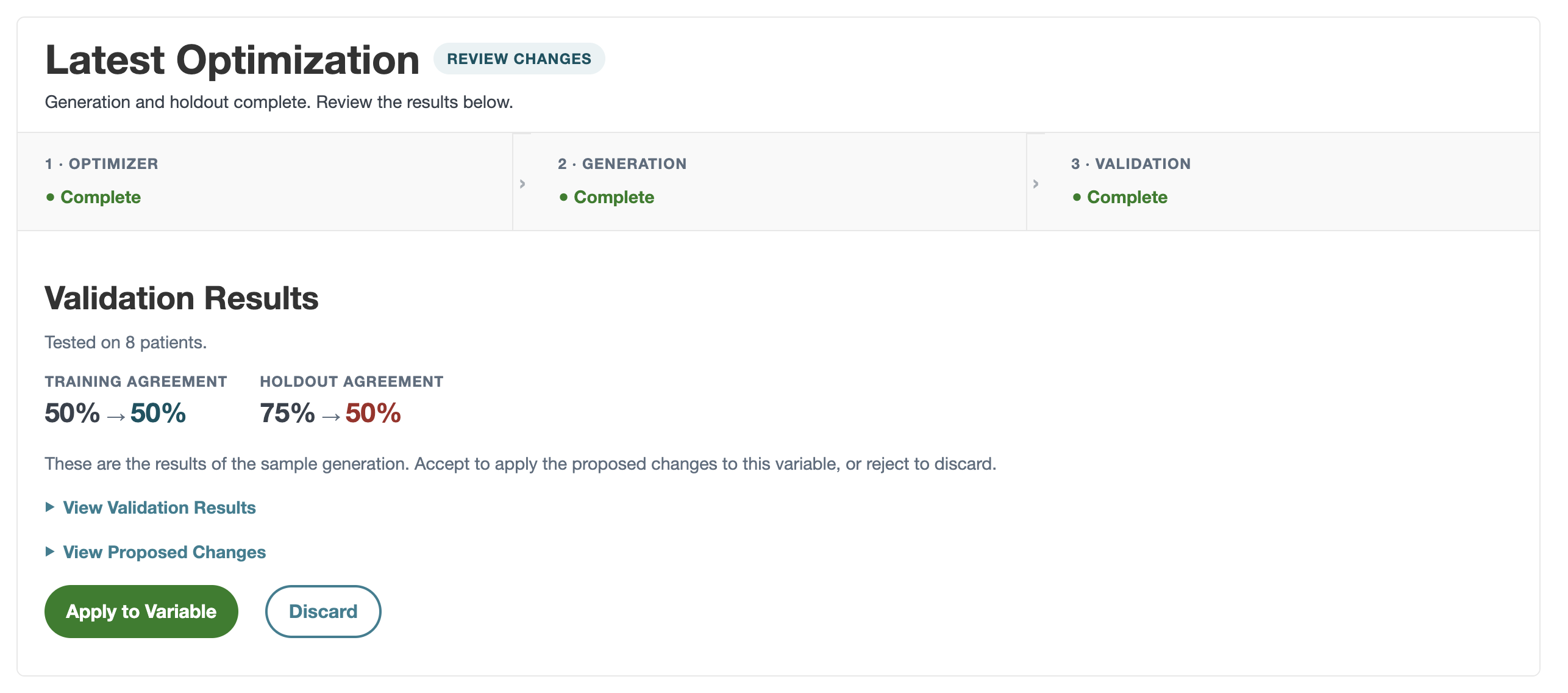
The Optimizer analyzes the disagreement between the training labels you created manually or uploaded in Validation and Brim's generated labels. It applies Brim's best practices for variable instructions and proposes targeted changes.
Open Project Setup, and click Optimize on a variable. From there you can:
- Start with a hypothesis. Tell the Optimizer what you want to improve, or let it work from the disagreements it finds in your validation results.
- Easily see what changed. Current and proposed instructions sit side by side, so you're never guessing at what the Optimizer rewrote.
- Test before you commit. If you have Training Data, you can generate on a sample set of patients and compare agreement before and after the proposed change.
- Apply or discard. If agreement improves, apply and save the new instructions. If it doesn't, discard and try a different angle.
- Keep the learnings. Every run is saved in Optimization History for that variable, so you and your team can see what was tried, what improved agreement, and what didn't.
Learn more in our documentation.
Flagging and Commenting on Results
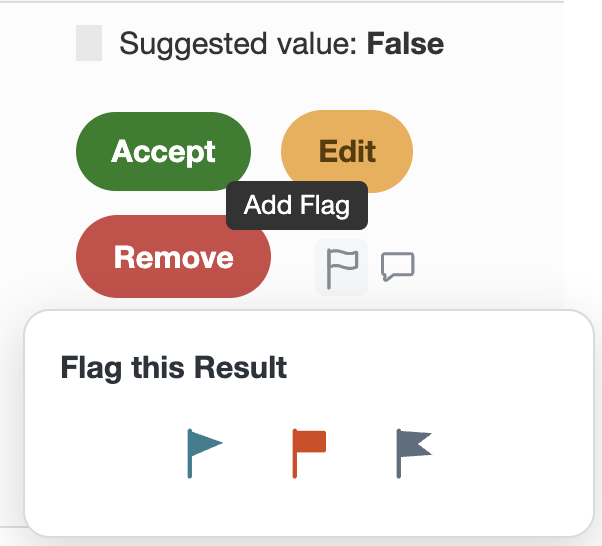
Reviewing a label is often more than clicking accept, edit, or remove. Sometimes a value needs a second opinion, two reviewers disagree, or there's context worth leaving for the rest of the team. Flags and comments let you capture that directly on a result, so triage and discussion happen alongside the data instead of in a separate thread. Both are visible to and editable by every project member.
You'll find Flags and Comments where you find the Accept, Edit, and Remove buttons. To flag a value, click the flag icon to apply a color. To add a comment, click the comment icon, add your comment, and click Save. Each label can have one flag and one comment at a time.
Both flow into the Detailed Export and persist through review status changes. When you regenerate, they follow your choice on what to do with review status: cleared if you clear all values, kept if you keep human-generated ones.
Learn more in our documentation.
Brim Improvements In This Release: Powered by You
There's nothing we love more at Brim than working with our customers on what would make their work smoother. This month we're delivering several improvements based on your requests, including:
- Default Value filter moved into the Filter menu on label generation and label review, instead of a checkbox on the label page. Learn more.
- Conditional Generation indicators that show when a variable uses conditional generation, mark a label as "Excluded by Conditions," and add a filter option for showing values skipped due to conditional generation. Learn more.
- Filter a Label Generation by the value of a structured, one-per-note, or one-per-patient variable.
Keep them coming! If you have a request, please reach out to support@brimanalytics.com or reply to one of our release emails. We'd love to learn more.
Writing Brim Into Your IRB Protocol
One of the questions we hear most often is how to describe your use of Brim in an IRB submission. Our IRB Language Guide gives you adaptable language covering how Brim processes data, where that processing happens, and how human review fits into the abstraction workflow.
We hope it makes the tool easier to describe accurately without starting from a blank page.
Get the Brim IRB Language Guide.
How to Get the August Release
This release is available as:
Version 2026.08.31
You can check your current version in Settings → About.
As always, thank you for building with Brim.
We're excited to keep making abstraction faster, clearer, and more trustworthy, and grateful to support the important work your teams are doing every day.